Getting Started
Welcome to your new company! This guide walks company owners through the essential first steps to get your airline operational. If you're looking to fly as a pilot first, see our Pilot Getting Started Guide instead.
Understanding the Platform
FSCharter simulates a dynamic passenger economy where travellers have specific origins, destinations, and travel budgets. Your job as a company owner is to identify demand, position aircraft, and create profitable routes and charter jobs.
The core workflow is: configure your fleet, set up ranks and pay for pilots, create routes and charter jobs where demand exists, and then either fly the jobs yourself or let your roster pilots handle them.
Setting Up Your Company
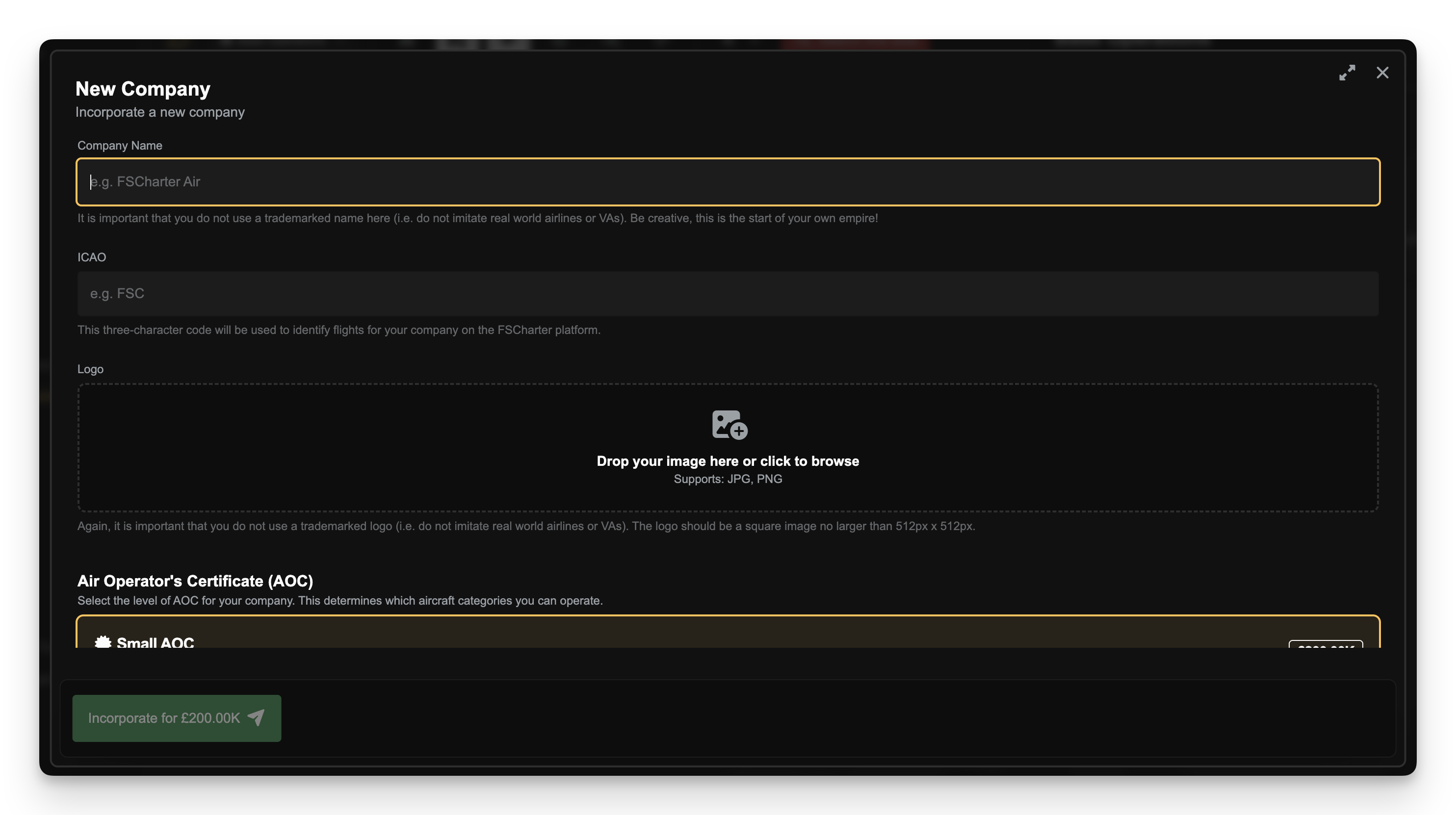
You can create a new company by clicking New Company in the sidebar. You'll be presented with a screen where you can specify a name, ICAO, logo and your AoC.
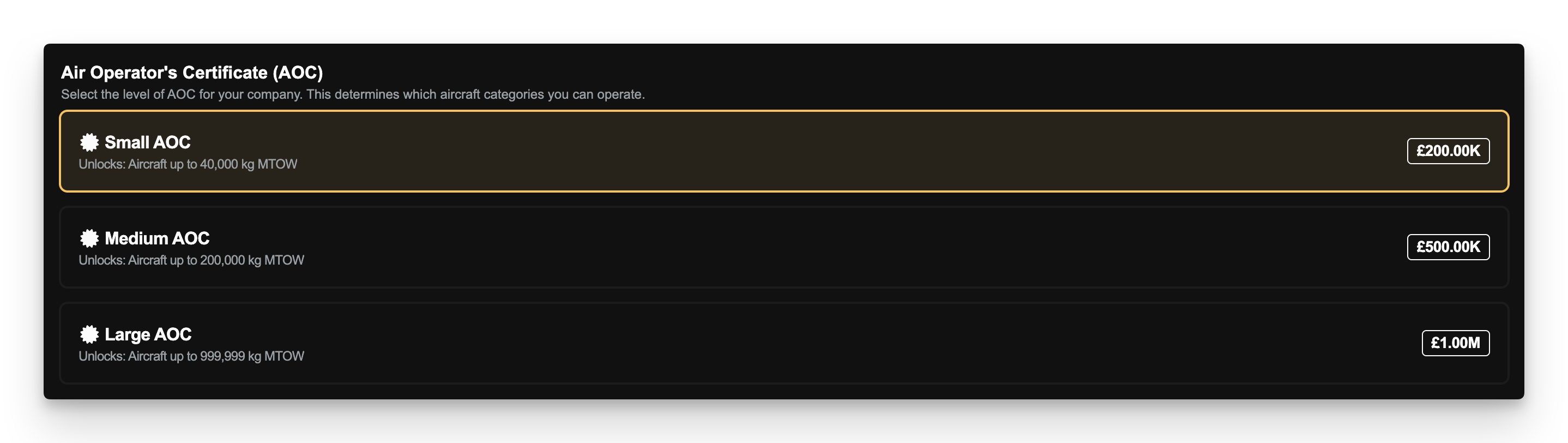
AOCs (Air Operator's Certificates) are what defines the size of aircraft you can operate in your company and is what dictates how much it will cost to create your company. You can upgrade this in the future.
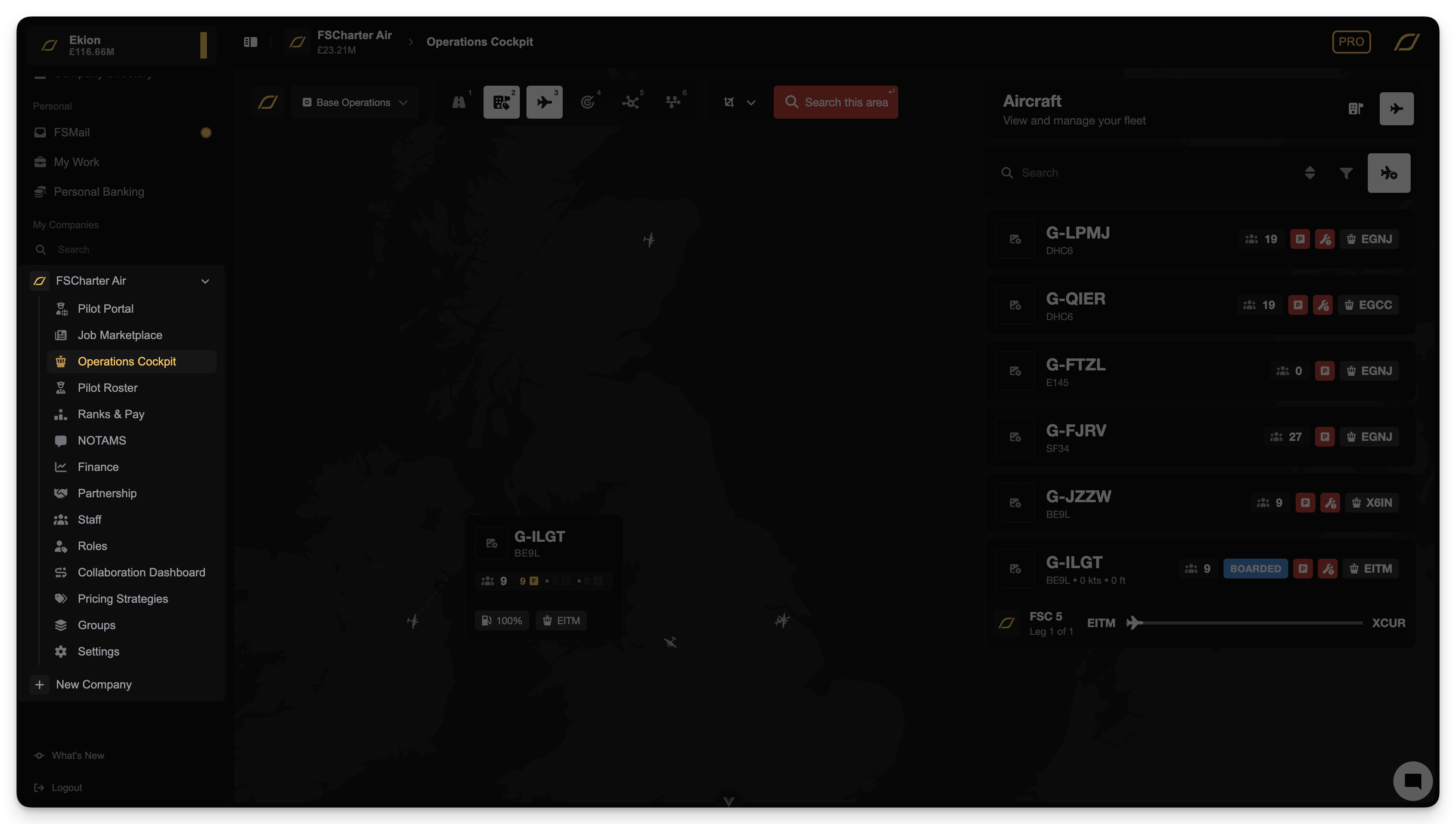
After creating your company, you'll find all management tools in the left sidebar underneath your company name.
Injecting Funds
Your company starts with no funds, so you will need to transfer money from your personal account to fund aircraft purchases or cover operating costs. To inject funds:
Navigate to Personal Banking in your personal sidebar (not the company sidebar)
2. Click New Transfer
Select your company as the recipient and enter the amount you wish to transfer.
The funds move instantly, appearing in your company's account ready for use. You can also transfer money back from your company to your personal account using the same process in reverse - useful for taking profits or reallocating capital between companies.
Configuring Ranks and Pay
Navigate to Ranks & Pay in the sidebar. This is where you define the structure for pilots who will fly for your company.
Each rank controls what aircraft pilots can access and how much they earn per flight hour. Default ranks are created automatically, but you should review and customise these to match your operation. Consider creating a progression path from entry-level ranks with limited aircraft access up to senior ranks with full fleet access.
For each rank, set the hourly pay rate and decide whether pilots should be automatically accepted or require your approval.
Creating Jobs
If your company is focused on smaller, more ad-hoc operations, check out Charter Jobs and Creating a Charter Job for more information.
If you prefer to run more traditional airline routes, then it's worth getting to understand how the (sophisticated and somewhat complex) network routing system works in FSCharter. See Route Networks and Creating a Route for more information.
Flying Your First Job
As a company owner, you're automatically on your own roster and can fly jobs without additional setup.
After creating a route or a charter job, go to the Job Marketplace to see available jobs for your company. You can either manually apply the Company filter to just see your own jobs or select the Job Marketplace buttons from either your company dropdown in the sidebar or your company's Pilot Portal. Select a route, choose an aircraft, and accept the job. The job will appear on your Flight Board ready for execution.
Before flying, ensure you've downloaded and installed the FSCharter plugin. In the plugin settings, set the Environment to Release. Load the correct fuel weight in your simulator (the plugin verifies weight at departure and deducts fuel costs from your account).
Can't see your job?
If you can't see your job in the Job Marketplace then it's likely that not all requirements for it to be flown are met. You can easily check this, but depending on whether it's a charter job or a route determines the method by which you find this information.
Charter Jobs
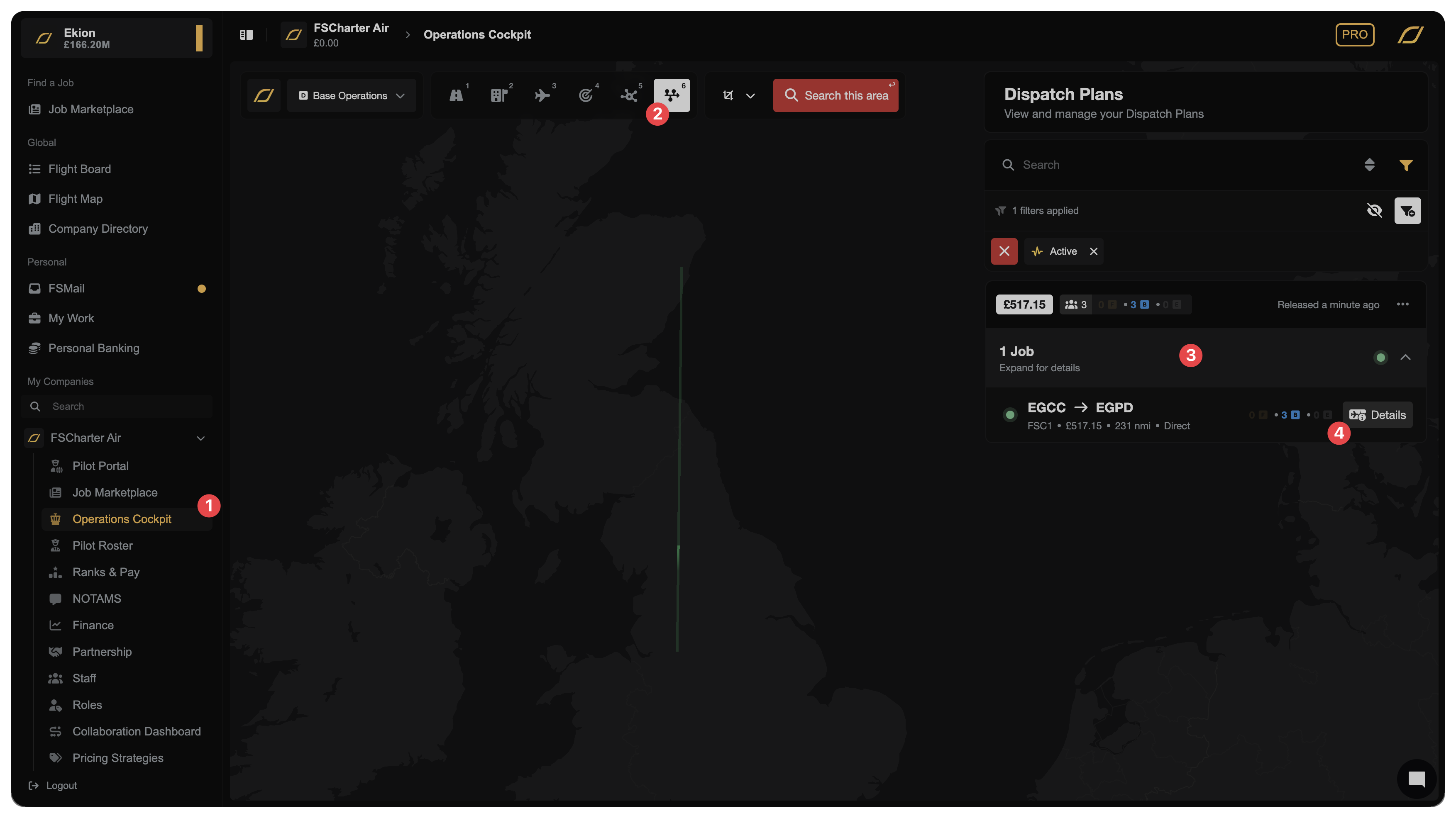
For Charter Jobs, navigate to the Operations Cockpit 1 and select the Dispatch Plans lens 2. Here, you'll be able to see all of your active Dispatch Plans (which contain jobs).
Select the "Expand for details" row 3 on a dispatch plan to see all jobs, then click on the Details button next to the job in question 4.
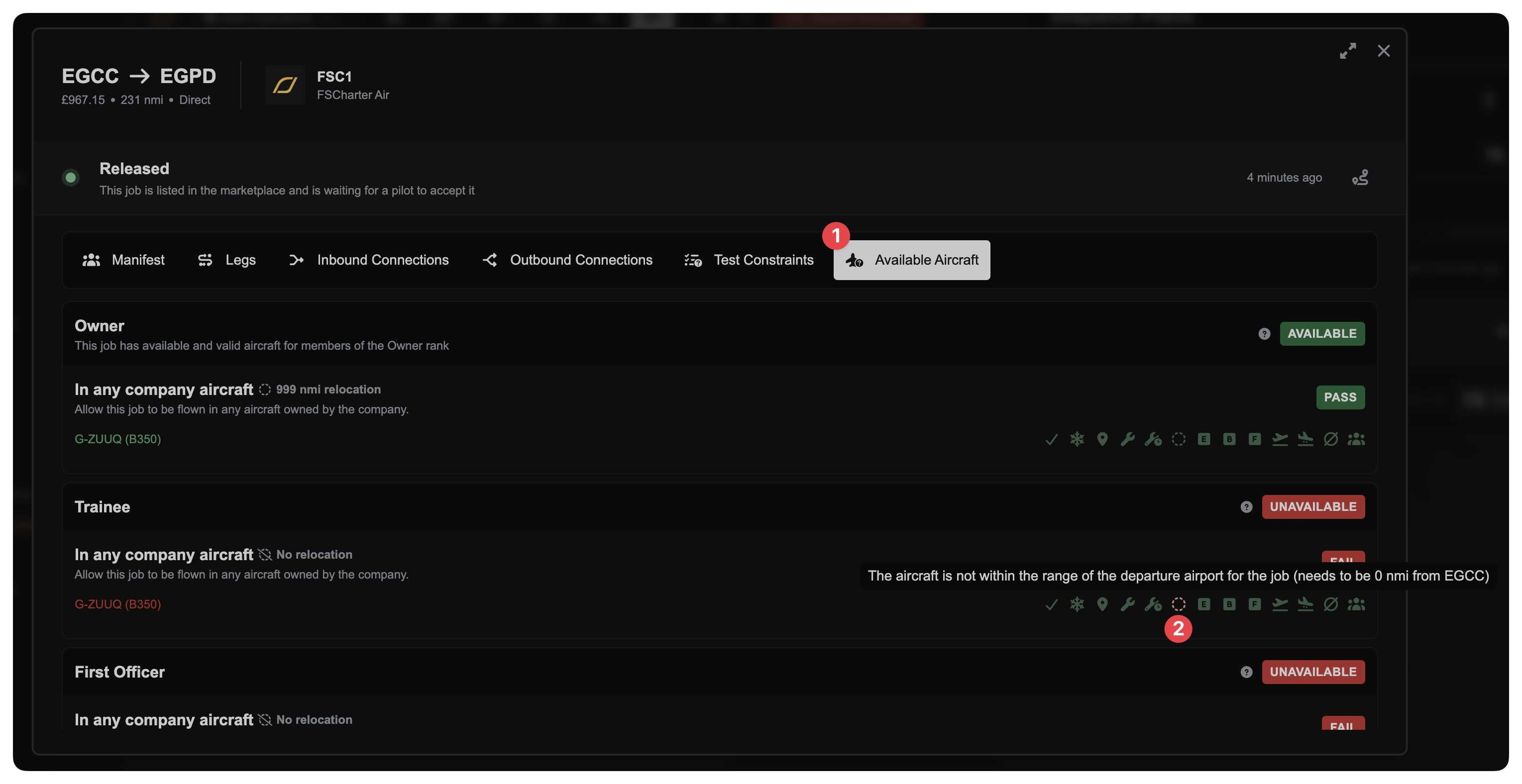
Clicking on Details will show you a dialog. Select the Available Aircraft tab 1 and you'll be shown whether or not each rank can fly your job, the aircraft that they can fly it with, and any blockers to the job being shown. In the example below the Owner can see the job because they have the ability to relocate any aircraft 999 nmi, however the Trainee rank has no relocation ability and my only aircraft is not at the departure airport of the job 2. Therefore, users holding the Trainee rank will not be able to see this job.
Routes
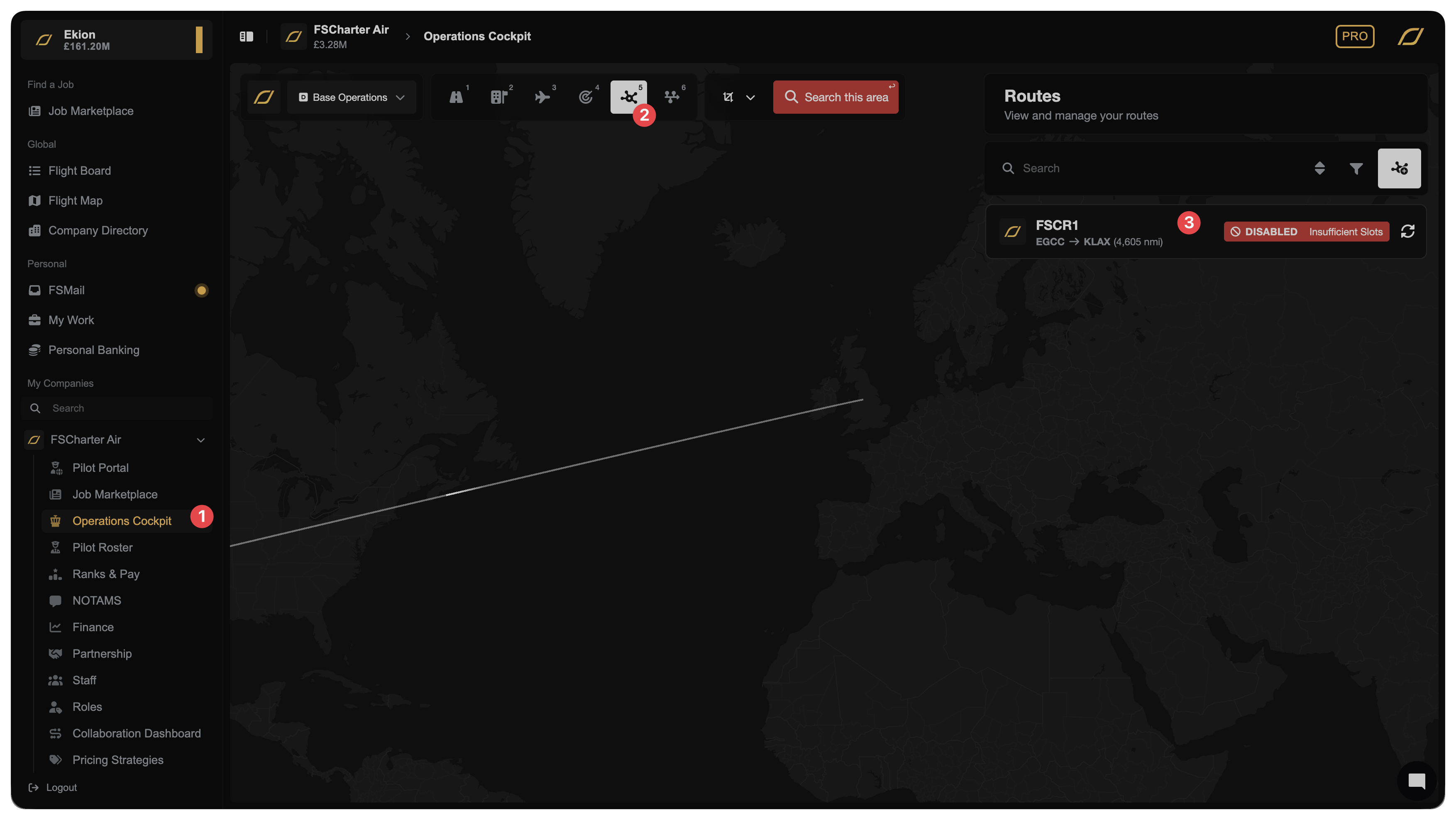
To see why a route is not showing in the marketplace the process is largely the same as for charter jobs, with the only difference being that the dialog is launched from the Routes lens 2. One the route lens is open, select the route in the sidebar 3.
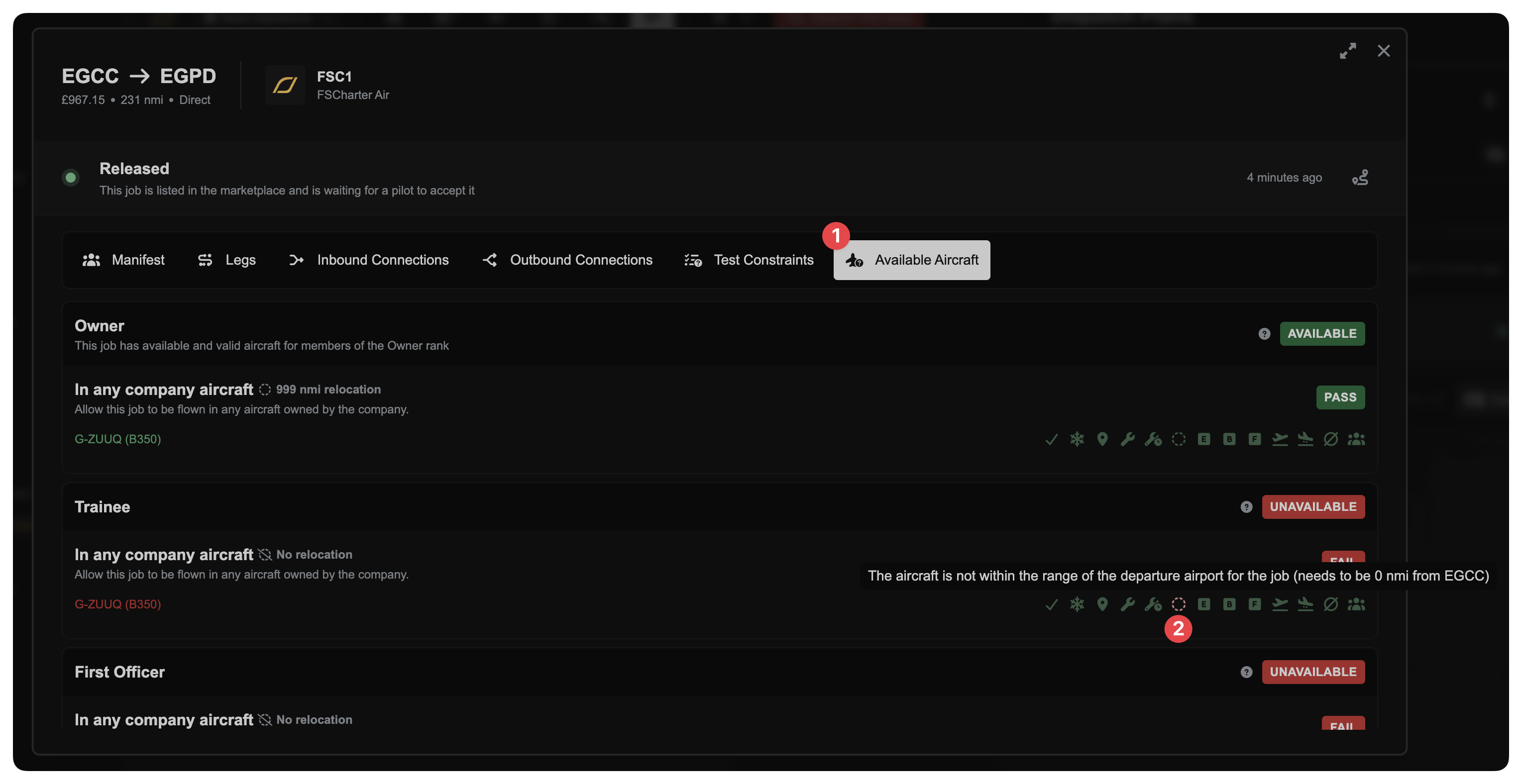
Once the dialog has opened you may select the Available Aircraft 1 tab and see the same information that we could see when testing a charter job. In this case, I'm lacking slots and the aircraft is at the wrong airport.
Repositioning Aircraft
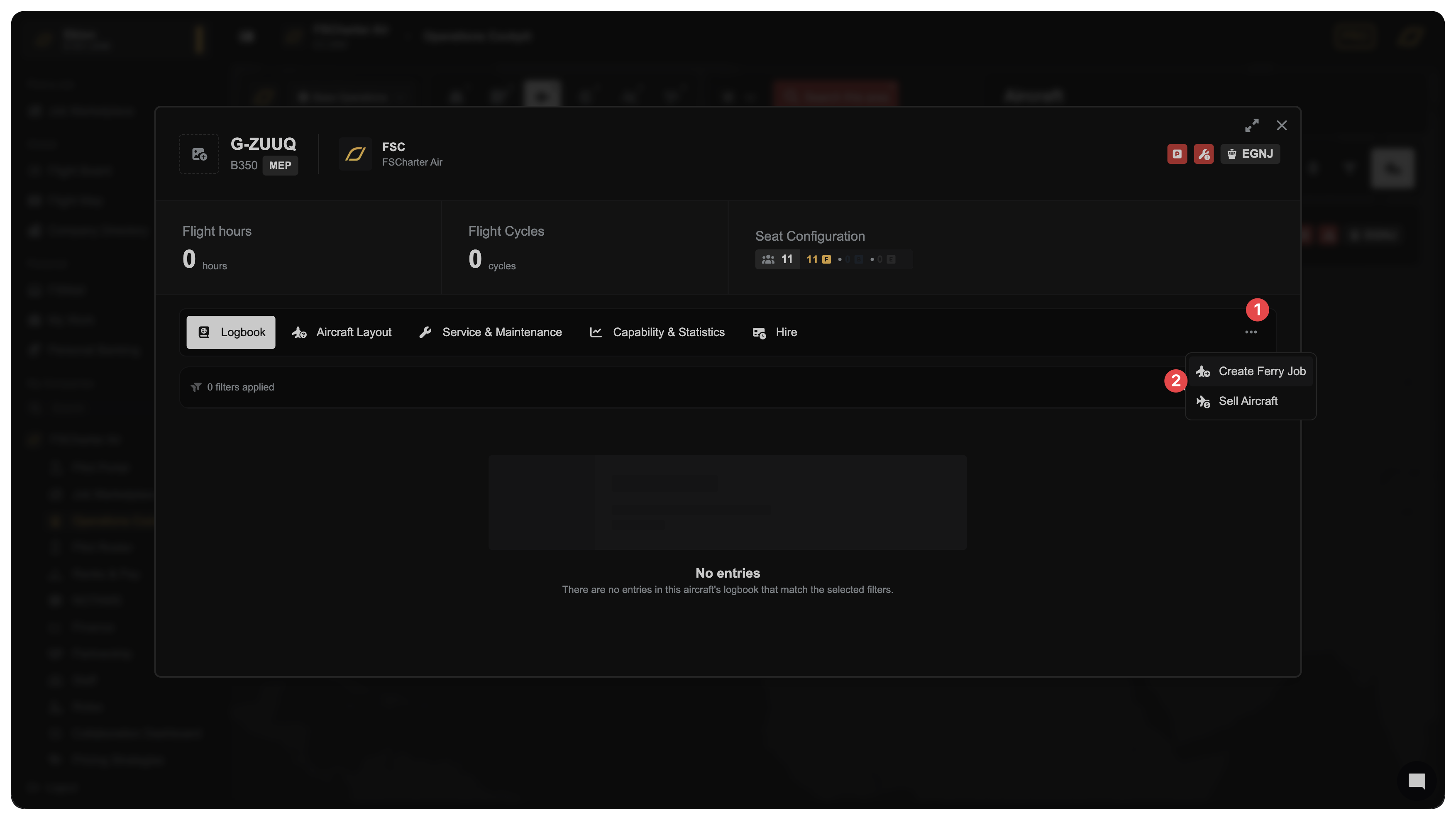
If you need to move an aircraft to a different airport without passengers, create a Ferry Job. Go to your aircraft list in the Operations Cockpit 1, select the aircraft lens 2 and select the aircraft in the dock.
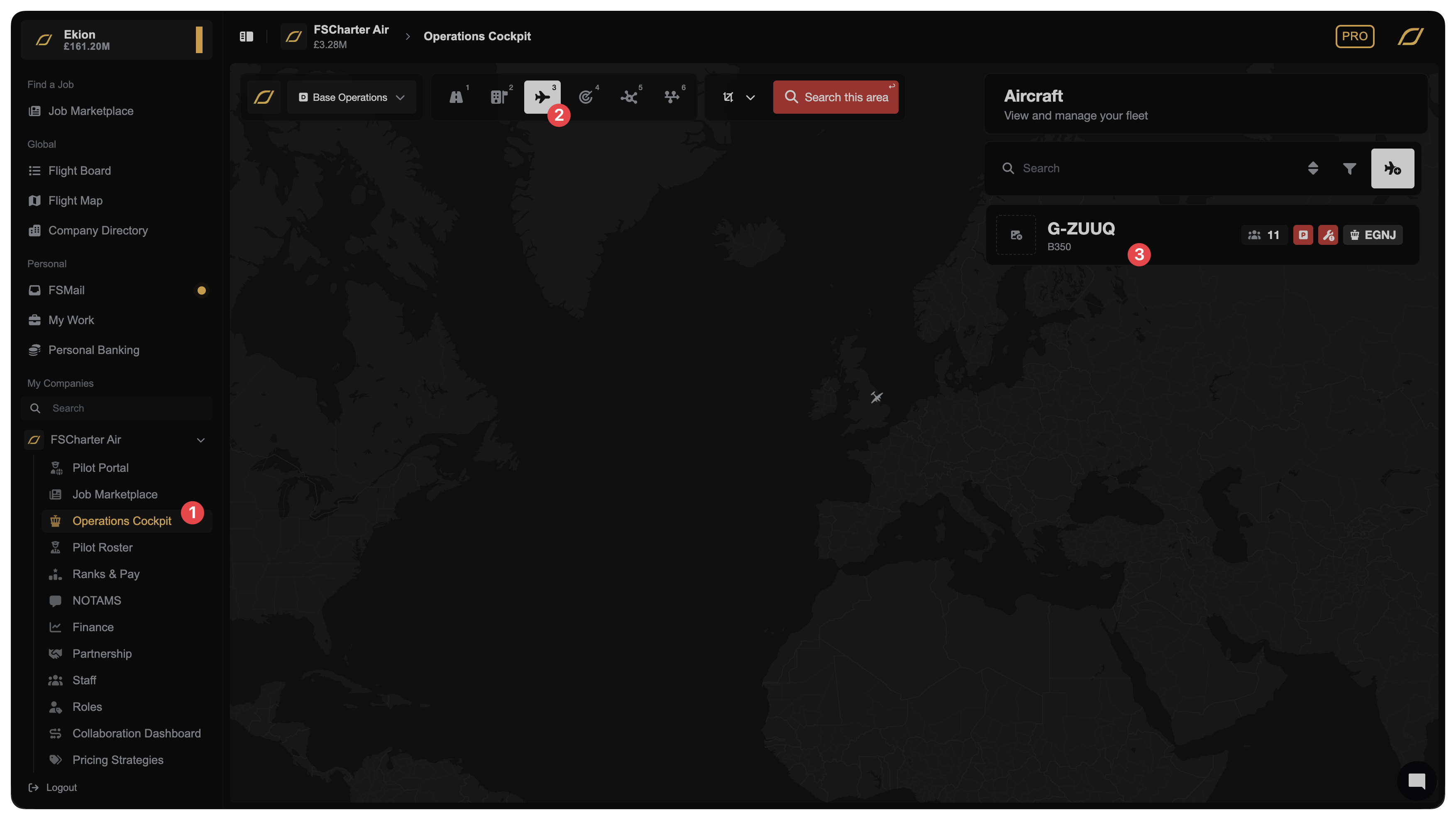
In the dialg that appears, select ... and then click Create Ferry Job.