
Hiring Aircraft
Aircraft Hiring allows pilots to locate available aircraft and generate their own charter jobs based on real-time demand, without requiring full dispatch permissions or complex flight planning. This feature bridges the gap between flying pre-assigned schedules and managing full airline operations.
Finding and Booking Aircraft
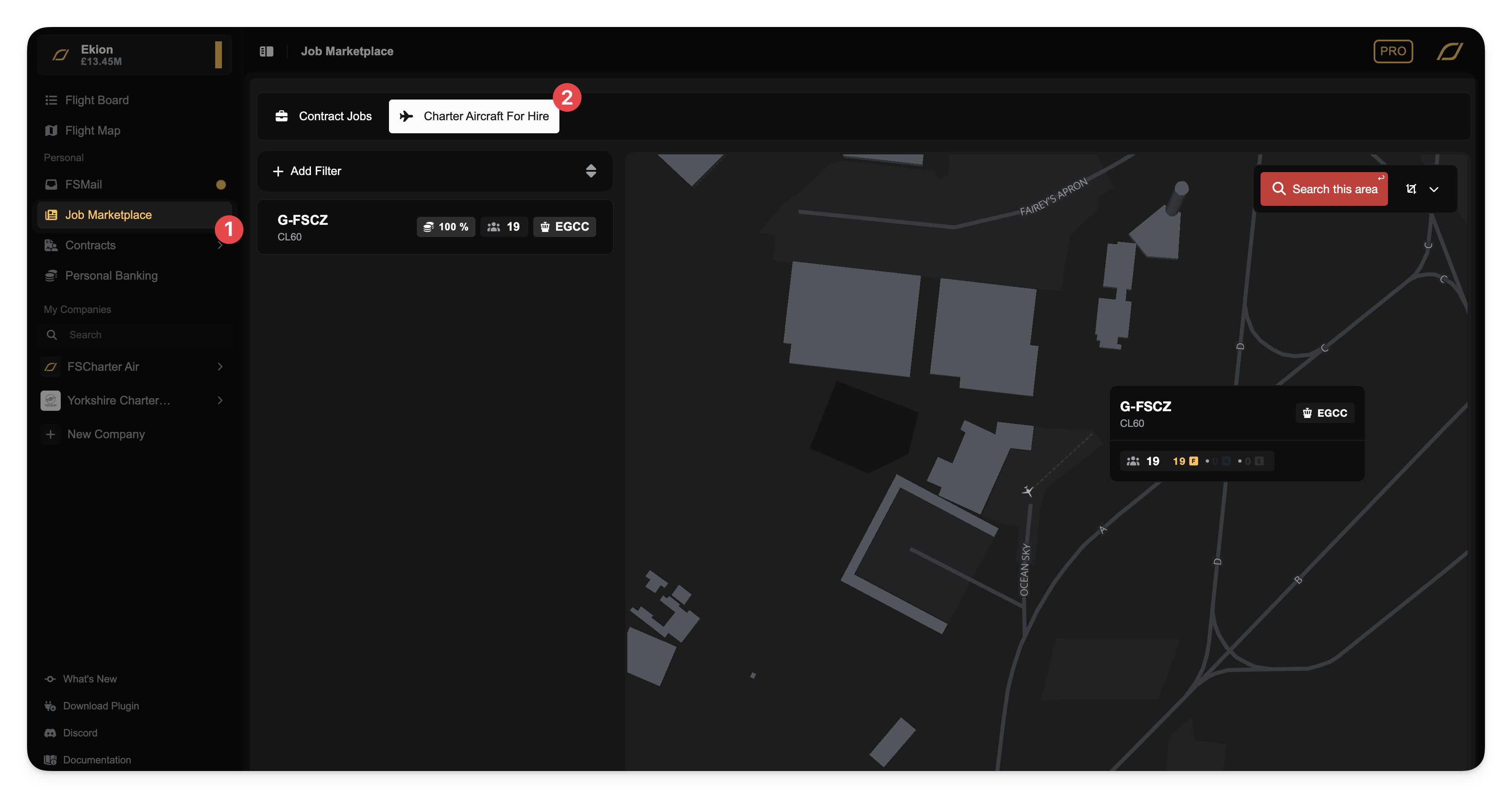
To access this feature, navigate to the Job Marketplace and select the Charter Aircraft for Hire tab. This view displays all aircraft currently available for pilot-configured charters. The view is split between a list and an interactive map.
The Map: Displays aircraft locations globally. You can pan and zoom to find aircraft in your preferred region. Clicking an aircraft icon on the map will select it. Don't forget to click
Search this areaonce you've moved the map.The List: Shows details for available aircraft, including the aircraft type, location, and registration.
You can filter this list using the Filter controls in the context bar.
Selecting Demand
Once you have selected a specific aircraft, the interface changes to the Demand Selection view. Unlike the Dispatch lens in the Operations Cockpit screen, this view is streamlined to show only the passengers that the aircraft owner allows you to fly.

Select a Route: The system groups available passengers by their destination (e.g., Manchester to London Heathrow). Click on a route to view the specific passengers waiting for transport.
Select Instances: You will see a list of passenger groups. Use the checkboxes to select the specific demand you wish to carry.
As you select passengers, the Loadout Summary (e.g., 12/150 seats occupied) will update in real-time.
The system will automatically assign passengers to the appropriate cabin class (Economy, Business, First) based on the aircraft's layout.
Accept Job: Once you are satisfied with the load, click the Accept Job button.
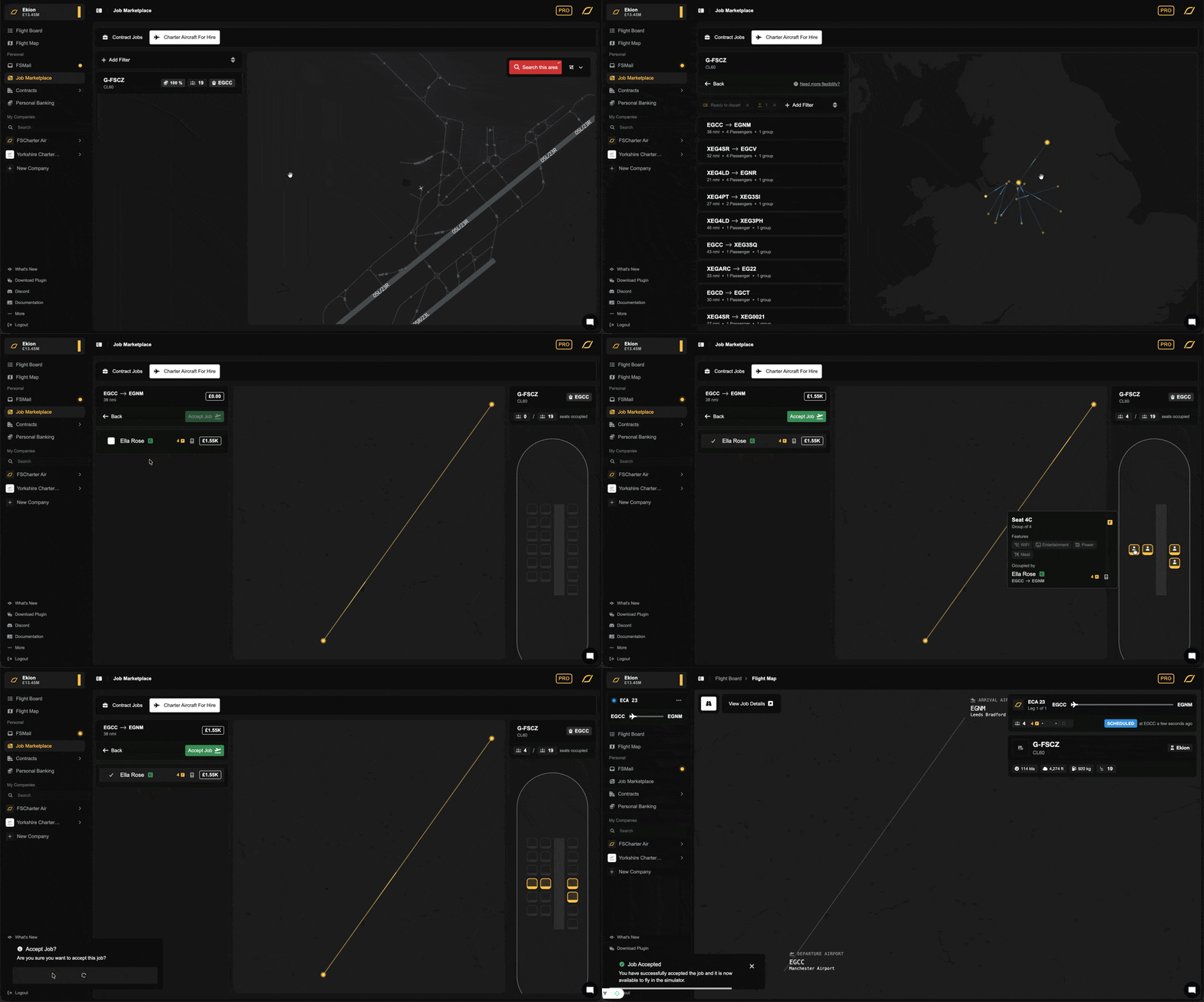
The system will automatically generate a dispatch plan, file the job, and move you directly to the flight briefing screen. You are now ready to fly.