
Flying Jobs & Getting Paid
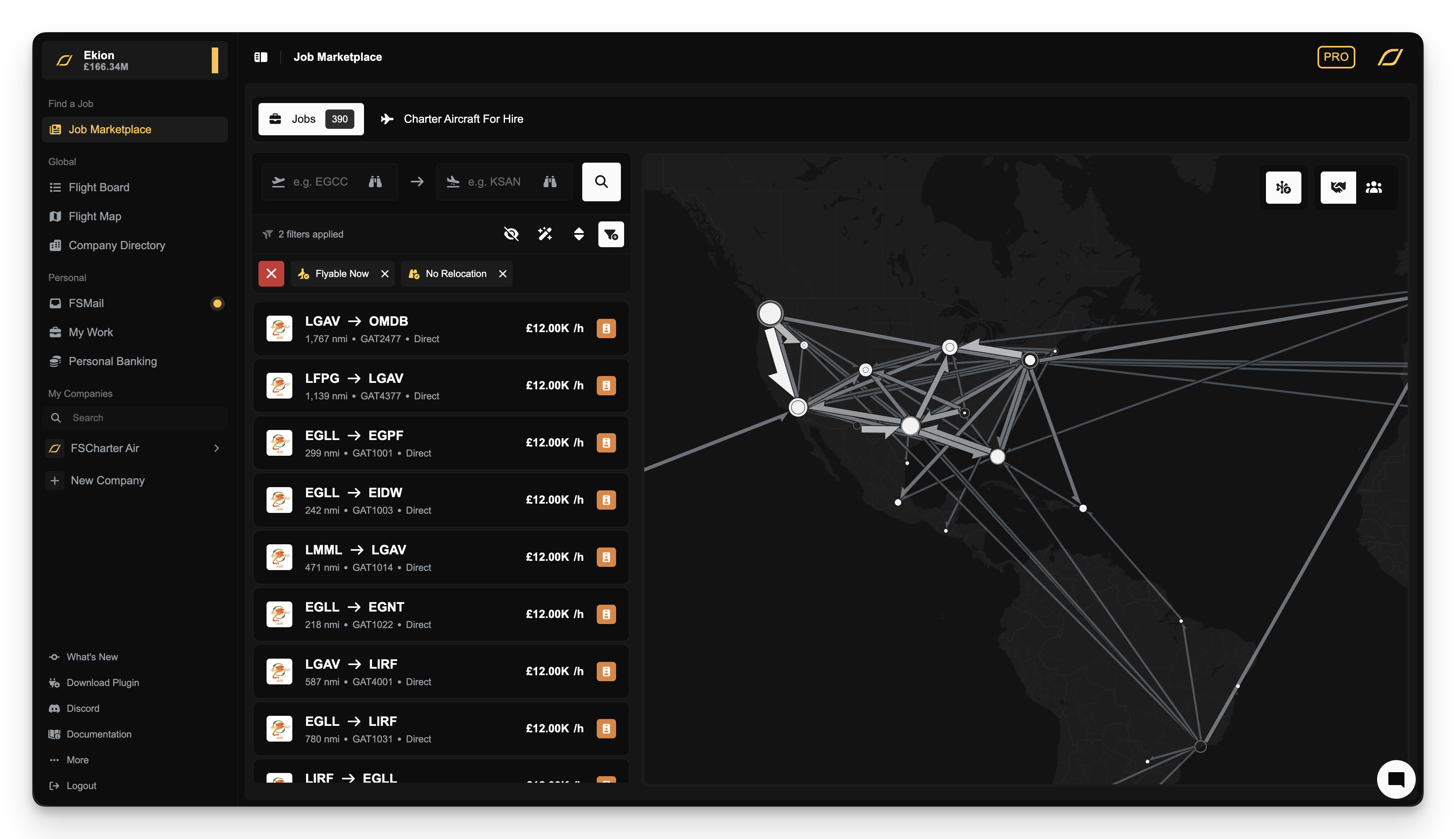
The Job Marketplace is where pilots find jobs to fly. All jobs you're eligible for across FSCharter are visible by default, regardless of whether you're currently on a company's roster. You can find the Job Marketplace in the left navigation bar.
See Getting Started for a step-by-step guide on flying a job.
Choosing a Job
The Job Marketplace displays jobs in both list and map views. Depending on whether clustering is enabled via the toggle button in the top right corner of the map, zooming into an area will likely show more routes.
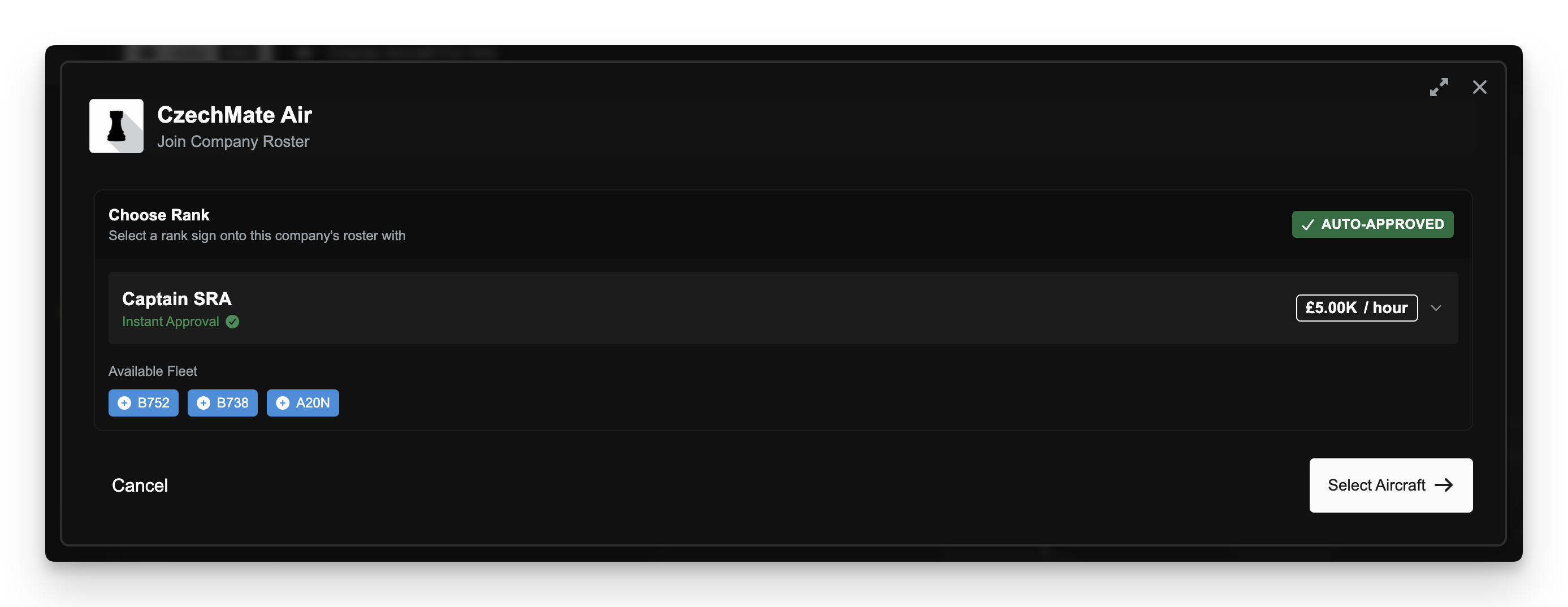
If you accept a job from a company you're not yet rostered with, you'll be prompted to select a rank and automatically added to their roster.
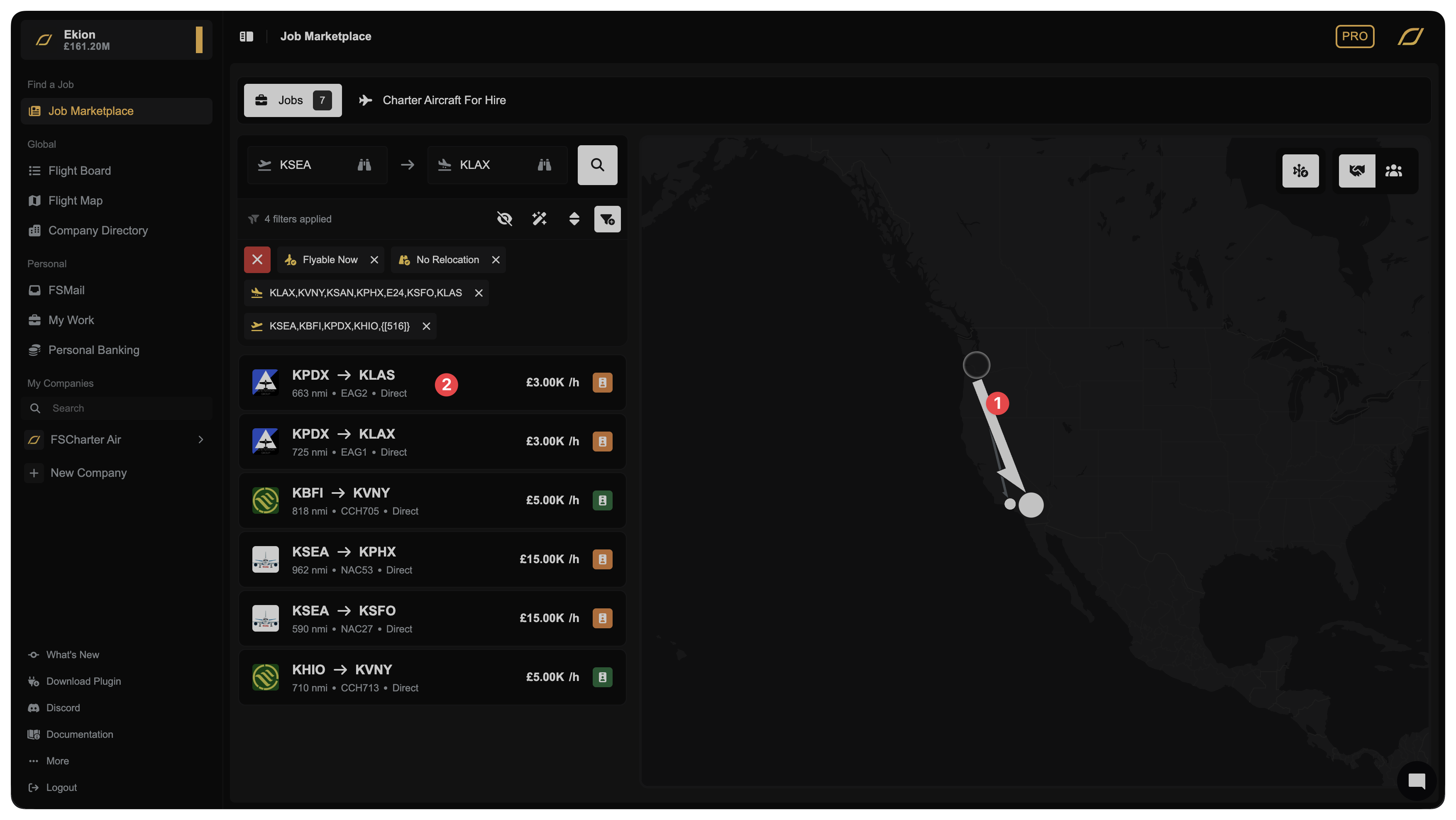
Selecting a line on the map will filter the list view 1 and clicking any job in the list 2 will open the aircraft selection screen. This shows all aircraft that can fly the route based on their minimums.
Pay & Pilot Rosters
Pilot Rosters are the foundation of flying jobs in FSCharter. To fly for a company, you must be on their roster. This guide explains how rosters work and how to progress your career within a company.
There are two ways to join a company's roster:
Join a company via the Job Marketplace
When you accept a job from the Job Marketplace for a company you're not yet rostered with, you'll be prompted to select a rank and join their roster automatically. This is the fastest way to start flying.
Join a company via the Company Portal
You can also browse companies directly and apply to join:
Navigate to the Company Directory
Click on a company to view their portal
Select the
Career ProgressiontabClick on a rank you're eligible for
Select
Applyin the sidebar
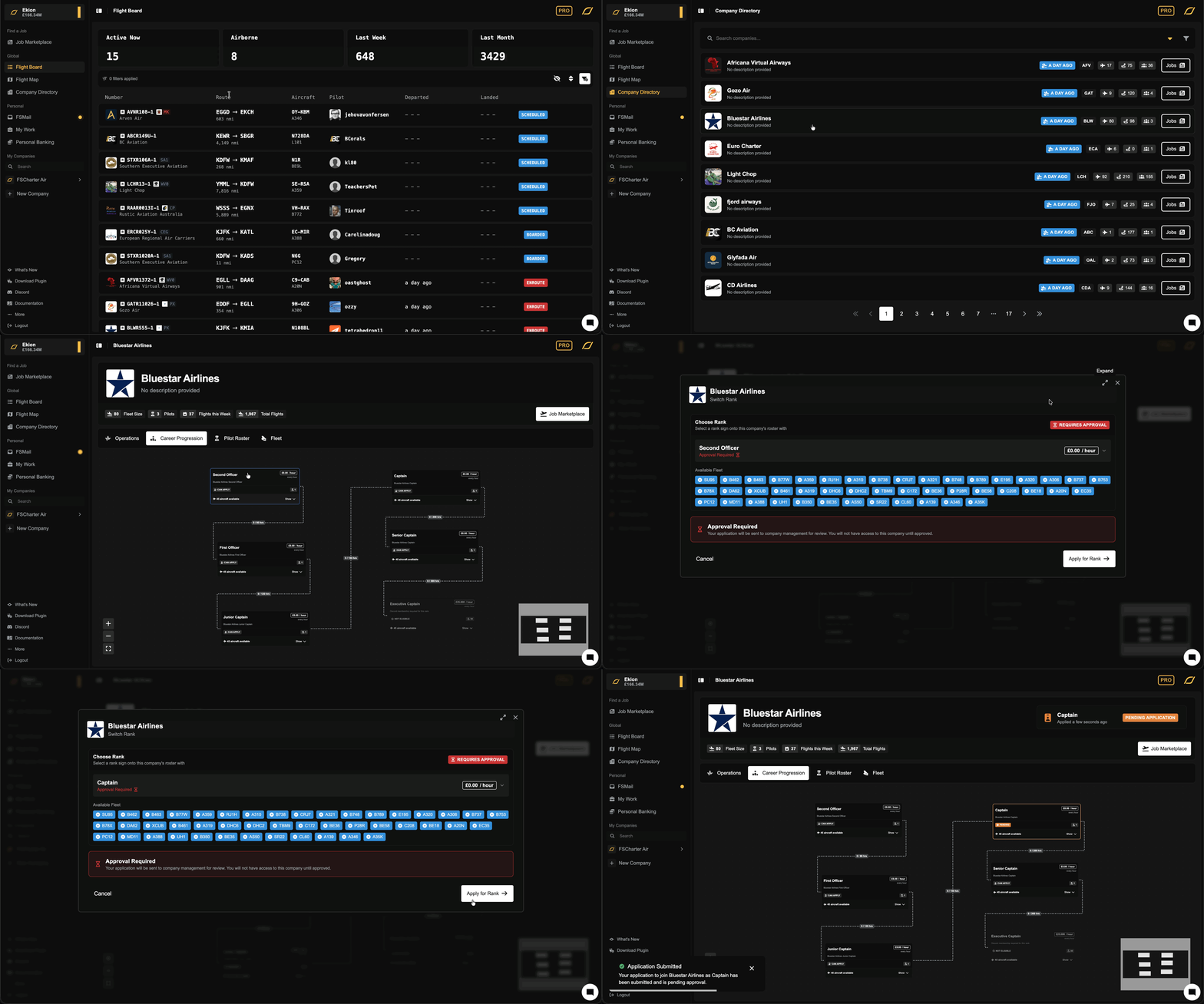
If the rank allows automatic acceptance and you meet the requirements, you'll be added immediately. Otherwise, your application will be reviewed by the company. You will be notified when it is approved or declined.
Leaving a Roster
To leave a company's roster:
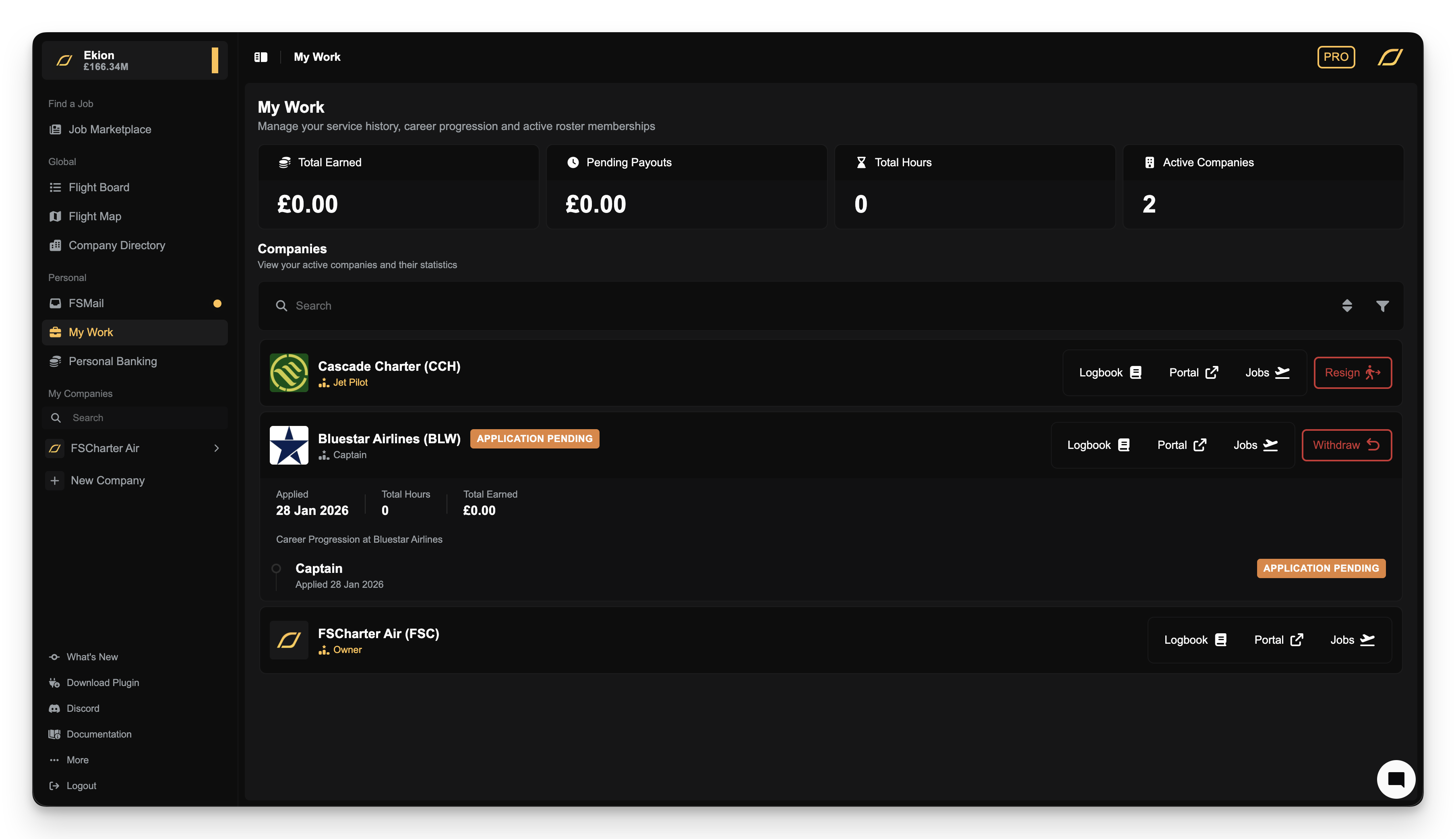
Navigate to the My Work page
Click
Resignon the row for the company that you wish to resign from.
Any unpaid earnings are forfeited when you leave. You can rejoin later by applying again.
Withdrawing a Pending Application
If you've applied to a rank and the company hasn't responded yet, you can withdraw your application before it's approved or rejected.
Your Work
You can view your earnings and flight history by visiting the My Work page.
Rank Flexibility
Once on a roster, you're not locked to a single rank. If you meet the requirements for multiple ranks within a company, you can switch between them freely.
This allows you to:
Access different aircraft types assigned to different ranks
Choose pay rates that suit different flight types
Progress through the company's structure over time
To switch ranks, visit the Career Progression tab in a company's Pilot Portal or click Switch Rank before you select an aircraft after accepting a job.
Career Progression
Each company can define progression routes (paths that show how to advance from one rank to another). The Career Progression tab displays these as a visual tree.
From this view you can:
See which ranks you've unlocked
View requirements for locked ranks (hours, global rank, etc.)
Apply for new ranks when eligible
Switch between ranks you've already unlocked
Rosters for Company Owners
Company owners are automatically on their company's roster and cannot leave or be removed. To exit, you must transfer ownership or close the company.
Owner pay is configured separately via the Owner Salary setting rather than through ranks.